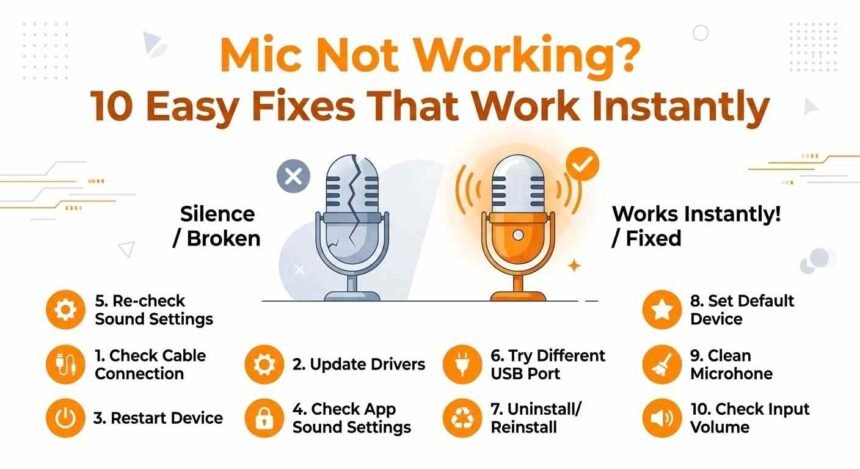
A mic that suddenly stops working can be frustrating. Whether you need it for online meetings, gaming, voice recording, video calls, or online classes, a malfunctioning mic can disrupt your communication and workflow.
The good news is that most mic problems are simple to fix. Often, the issue is caused by incorrect settings, disabled permissions, outdated drivers, or minor hardware problems. In this guide, we will explain 10 easy and effective fixes to get your mic working again. Each step is explained clearly so beginners can follow without confusion.
Why Your Mic May Not Work
Before jumping into fixes, it helps to understand why a mic might stop working. Common reasons include:
- Incorrect Windows settings: The wrong mic may be selected as the default input device.
- Blocked permissions: Apps or mic users may not have access to your mic.
- Outdated drivers: Your mic driver may be outdated or corrupted.
- Hardware issues: Loose cables, mute switches, or faulty mics.
Knowing the cause helps you choose the right fix quickly.
Fix 1: Check Mic Permissions in Windows
Windows 10 and 11 include privacy settings that control which apps can access your mic. If permissions are blocked, your mic won’t work in apps like Zoom, Discord, or Google Meet.
Steps to Enable Mic Access
- Open the Start menu and select Settings.
- Click Privacy.
- SelectMicc. (In Windows 11, it may be under Privacy and Security → Mic)
- Turn on:
- Mic access for this device
- Allow apps to access your mic
Allow Specific Apps to Use Your Mic
Below the main toggle, you will see a list of apps. Make sure the apps you want to use are enabled, such as:
- Zoom
- Discord
- Voice Recorder
- Microsoft Teams
- Google Chrome
Fix 2: Check Sound Settings and Default MMic. Sometimes the wrong mic is selected as the default input device.
Steps to Select the Correct Mic
- Right-click the speaker icon in the taskbar.
- Click Sound settings.
- Scroll to Input and choose the correct mic.
- Speak into your mic and watch the input level bar.
If the bar moves when you speak, your mic is working. If it doesn’t, your system may notMictect the mic properly.
Fix 3: Test Your Mic
Windows has a built-in feature to test your mic.
How to Test Your Mic
- Open Sound settings.
- Scroll to IMict and select your mic.
- Click Start Test.
- Speak normally and check the percentage result.
A higher percentage means the mic is working well.
Fix 4: Adjust Mic Volume
If your mic works but is too quiet, adjusting the input volume can help.
Steps to Adjust Mic Volume
- Open Sound settings.
- Select your mic under Input.
- Move the Input volume slider to 80–100 for better audio detection.
Fix 5: UpdateMic Reinstall Mic Drivers
Drivers allow Windows to communicate with your mic. Outdated or corrupted drivers often cause mic issues.
Update Mic Driver
- Right-click the Start button → DeMice Manager.
- Expand Micio inputs and outputs.
- Right-click your mic → Update driver → Search automatically for drivers.
Reinstall Mic Driver
If updating due to Mict work:
- Right-click the mic → Uninstall device.
- Restart your PC.
- Windows will install the driver automatically.
Fix 6: Check Browser Mic Access
If your mMicworks in Windows but not in a browser, browser permissions are likely the problem.
Enable Mic Access in Chrome
- Open Chrome → click the three-dot menu → Settings.
- Go to Privacy and Security → Site Settings → Mic.
- Make sure:
- The correct mic is selected
Sites can request mic access. When visiting websites, always click Allow if a mic permission pop-up appears.
Check Other Browsers
For Edge or Firefox:
- Open Settings → Privacy/Permissions → Enable miMicccess
Fix 7: Inspect Hardware
If software fixes fail, check your mic hardware.
Inspect Cables and Connections
- Ensure the USB or headphone jack is fully plugged in.
- Try anotherMicB port.
- Check for cable damage.
Check Mute Buttons
Many headsets have a physical mute switch. Make sure your mic is muted.
Test Mic on Another Device
Connect your mic to another computer. If it doesn’t work there, the mic may be faulty.
Try a DMicerent Mic
Connecting another mic can confirm whether the issue is with your mic or your PC.
Fix 8: Restart Audio Services
Windows audio services can sometimes stop working properly. Restarting them can restore mic functionality.
Steps tMicestart Audio Services
- Press Windows + R → type services.msc → press Enter.
- Find Windows Audio → right-click → Restart.
Fix 9: Run the Windows Troubleshooter
Windows has a built-in troubleshooter for mic problems.
Steps
- Open Settings → System → Troubleshoot → Other troubleshooters.
- Run the Recording Audio troubleshooter.
- Follow the on-screen instructions.
Fix 10: Replace Your Mic
If all else fails and the mic is still not working, it may be physically damaged.
Signs You May Need a New Mic
- NoMicund detected at all
- Distorted or static audio
- FrequenMicisconnections
- Mic not detected on multiple devices
Micacing your mic or headset may be the most effective solution.
Tips for Better Mic Performance
- Position the microphone 15–30 cm from your mouth.
- Speak at a normal volume, not too far or too close.
- Use a quiet environment with minimal background noise.
- Regularly test your mic before calls or recordings.
Final Thoughts
Simple software or hardware issues often cause a mic not working on Windows 10 or 11. By following these 10 easy fixes, you can quickly restore functionality.
Regular mic checks, proper volume settings, and updated drivers ensure your mic works reliably for meetings, gaming, recordings, and online classes.