A microphone that suddenly stops working on your computer can be frustrating. Whether you need it for online meetings, gaming, recording, or voice chats, a non-working mic can interrupt your work or communication.
The good news is that most microphone problems on Windows 10 and Windows 11 are easy to fix. The issue usually comes from incorrect settings, disabled permissions, outdated drivers, or simple hardware problems.
This guide explains step by step how to fix a microphone that is not working on Windows. Each solution is explained clearly, so even beginners can follow it.
Check Microphone Permissions in Windows
One of the most common reasons a microphone does not work is that Windows is blocking apps from using it.
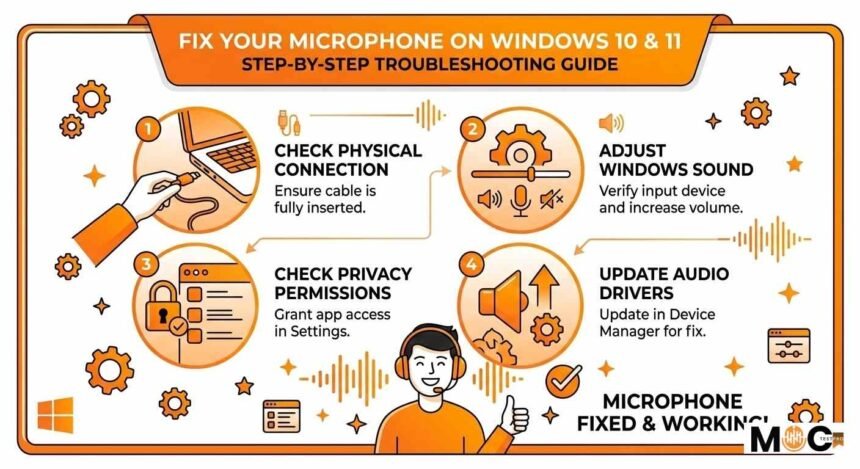
Both Windows 10 and Windows 11 include privacy controls that allow you to decide which apps can access your microphone. If this setting is turned off, your mic will not work in apps like video calls, browsers, or recording software.
Open Microphone Privacy Settings
Follow these steps:
- Click the Start menu.
- Open Settings.
- Select Privacy.
- Click Microphone.
In Windows 11, you may see it under Privacy and Security, then Microphone.
Enable Microphone Access
Make sure the following settings are turned on:
- Microphone access for this device
- Allow apps to access your microphone
If these options are disabled, apps will not be able to detect or use your microphone.
Allow Specific Apps to Use the Microphone
Below the main permission toggle, Windows shows a list of apps that can use the microphone.
Make sure the app you want to use is enabled. For example:
- Zoom
- Discord
- Voice Recorder
- Google Chrome
- Microsoft Teams
If the app is disabled, toggle it on.
Check Sound Settings and Default Microphone
Another common reason a microphone does not work is incorrect sound configuration. Windows may be using the wrong microphone as the default device.
Open Sound Settings
- Right-click the speaker icon in the taskbar.
- Click Sound settings.
You will see sections for input and output devices.
Select the Correct Input Device
Under the Input section:
- Choose the microphone you want to use.
- Speak into the microphone and watch the input level meter.
If the bar moves when you speak, your microphone is working.
If nothing moves, Windows may not be detecting your microphone correctly.
Test Your Microphone
Windows includes a microphone test feature.
Steps:
- Open Sound settings.
- Scroll to Input.
- Click your microphone device.
- Click Start Test.
Speak normally and check the percentage result. A higher percentage means the mic is working properly.
Adjust Microphone Volume
Sometimes the microphone works, but the volume is too low.
To increase microphone sensitivity:
- Open Sound settings.
- Select your microphone.
- Adjust the Input volume slider.
Set it to 80-100 for better audio detection.
Update or Reinstall Microphone Drivers
Drivers enable Windows to communicate with hardware devices, such as microphones. If the driver is outdated, corrupted, or missing, the microphone may stop working.
Updating the driver often solves the issue.
Open Device Manager
Follow these steps:
- Right-click the Start button.
- Click Device Manager.
- Expand Audio inputs and outputs.
You will see your microphone listed here.
Update the Microphone Driver
- Right-click your microphone device.
- Select Update driver.
- Choose Search automatically for drivers.
Windows will search online and install the latest compatible driver.
Reinstall the Microphone Driver
If updating does not work, try reinstalling the driver.
Steps:
- Open Device Manager.
- Right-click the microphone device.
- Select Uninstall device.
- Restart your computer.
Windows will automatically reinstall the driver during a restart.
Check Browser Microphone Access
If your microphone works in Windows but not in a browser, the issue is likely related to browser permissions.
Many websites require permission to use your microphone.
Enable Microphone Access in Google Chrome
Steps:
- Open Chrome.
- Click the three-dot menu in the top right.
- Select Settings.
- Click Privacy and Security.
- Select Site Settings.
- Click Microphone.
Make sure:
- The correct microphone device is selected.
- Sites can request microphone access.
Allow Microphone on Specific Websites
When visiting websites such as video conferencing platforms, Chrome may display a microphone permission pop-up.
Always click Allow when asked.
If you accidentally blocked it, you can change it by clicking the lock icon near the website address and adjusting microphone permissions.
Check Microphone Settings in Other Browsers
For browsers like Edge or Firefox:
- Open Settings
- Look for Privacy or Permissions
- Enable Microphone access
Without browser permission, the website cannot record audio, even if the mic works in Windows.
Check for Hardware Problems
If none of the software fixes work, the issue may be hardware-related.
Inspect the Microphone Cable
If you are using a wired microphone:
- Make sure the cable is fully plugged in.
- Try another USB port.
- Check if the cable is damaged.
Loose connections are a very common cause of microphone failure.
Test the Microphone on Another Device
To confirm whether the microphone is working:
- Connect it to another computer or laptop.
- Test it using a voice recording app.
If it does not work on another device either, the microphone itself may be faulty.
Check Headset Mute Buttons
Many gaming headsets include a physical mute switch.
Make sure:
- The microphone is not muted
- The microphone boom is positioned correctly
Some headsets automatically mute when the microphone arm is folded up.
Try a Different Microphone
Connect another microphone to your computer.
If the new mic works, the problem is likely with the original microphone.
Restart Audio Services in Windows
Sometimes Windows audio services stop working properly. Restarting them can fix microphone detection issues.
Steps:
- Press Windows key + R.
- Type services.msc and press Enter.
- Find Windows Audio.
- Right-click it and select Restart.
This refreshes the audio system and can restore microphone functionality.
Run the Windows Troubleshooter
Windows includes a built-in tool that automatically detects audio problems.
Steps:
- Open Settings.
- Go to System.
- Select Troubleshoot.
- Click Other troubleshooters.
- Run the Recording Audio troubleshooter.
The system will scan for problems and suggest fixes.
Final Thoughts
Microphone problems on Windows 10 and Windows 11 are usually caused by simple settings issues rather than hardware failure.
Most users can fix the issue by:
- Enabling microphone permissions
- Selecting the correct input device
- Updating audio drivers
- Allowing browser microphone access
- Checking hardware connections
By following the steps in this guide, you should be able to identify the problem and restore your microphone functionality quickly.
If the microphone still does not work after trying all solutions, the device may be physically damaged and replacing it may be the best option.