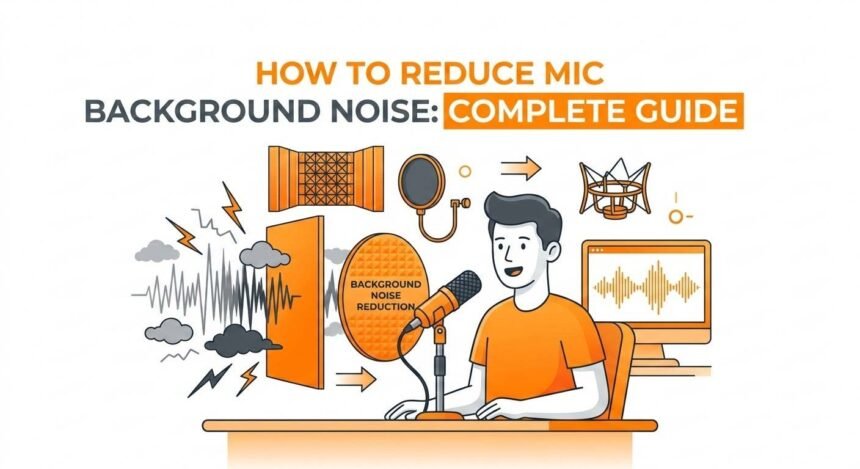
Background noise can ruin even the clearest voice recording. Whether you are on Zoom calls, recording a podcast, streaming, or doing voiceovers, unwanted sounds like keyboard clicks, fan hum, or traffic can distract your listeners. This guide will show you everything you need to know to reduce mic noise and improve your sound quality.
Why Background Noise Happens
Before solving a problem, it’s important to understand why it occurs. Background noise is any sound captured by your microphone that is not your voice. Common sources include:
- Laptop fans and air conditioners
- Keyboard and mouse clicks
- Room echo and sound reflections
- Traffic or outdoor sounds
- Other devices like phones, notifications, or TVs
The louder or closer these sounds are to your mic, the more they will appear in your recording. Even a small noise can affect audio quality if your microphone is highly sensitive.
How Microphone Type Affects Noise
Different microphones handle noise differently. Understanding your mic type helps you know what’s possible.
Built-in Laptop Microphones
- Often small and omnidirectional
- Pick up sound from all directions
- Capture more room noise and keyboard clicks
USB Condenser Microphones
- Larger capsule, sensitive to detailed sound
- Picks up more background noise if the room is not treated
- Great for voice clarity in quiet spaces
Dynamic Microphones
- Less sensitive, focus mainly on what’s close
- Naturally reject background noise
- Ideal for noisy rooms or live streaming
Lavalier and Headset Microphones
- Stay close to your mouth
- Reduce noise by being positioned near the sound source
- A small size can pick up some wind or rustling if clothing moves
Simple Ways to Reduce Background Noise Before Recording
You can do a lot to reduce noise without spending money. These steps optimize your environment and setup.
Choose a Quiet Location
- Avoid busy rooms or areas with loud appliances
- Close doors and windows to block outside sounds
- Inform others nearby that you are recording to minimize interruptions
Position Your Microphone Correctly
- Keep your mic 10 to 20 centimeters from your mouth
- Angle it slightly away from noise sources like fans or computer towers
- Use a pop filter or foam cover to absorb unwanted sounds
Minimize Device Noise
- Turn off or reduce the fan and AC speed if possible
- Move your keyboard or mouse further away from the mic
- Use headphones to prevent speaker feedback from being picked up
Using Software to Reduce Background Noise
Modern apps can help clean your audio even if your environment isn’t perfect.
Real-Time Noise Suppression Tools
- Krisp: Removes background noise during calls
- NVIDIA Broadcast: For PCs with NVIDIA GPUs, filters noise and echo
- Discord or Zoom Built-in Noise Suppression: Auto removes constant background sounds
Audio Editing Software
- Audacity: Free tool for noise reduction after recording
- Highlight a silent portion of your recording as a noise sample
- Apply the noise reduction effect to the entire track
- Adobe Audition or Logic Pro: Professional tools with advanced denoise filters
Acoustic Treatment for Your Room
The room itself can affect noise and echo. Simple adjustments make a big difference.
Soft Surfaces Absorb Noise
- Place carpets, rugs, or curtains around your recording area
- Hang blankets on walls to reduce sound reflections
- Fill empty shelves with books or soft items to absorb sound
Avoid Reflective Surfaces
- Hard floors, glass, or bare walls bounce sound and create an echo
- Use foam panels or furniture strategically to diffuse sound
Advanced Hardware Solutions
If you want professional results, hardware adjustments can help.
Use a Dynamic Mic
- Focuses on your voice and ignores distant sounds
- Excellent for podcasts or noisy rooms
Use a Mic Boom Arm or Stand
- Keeps the mic steady and reduces vibrations from your desk
- Avoids picking up bumps and accidental noise
Shock Mount and Pop Filter
- Shock mount absorbs vibrations
- Pop filter reduces harsh plosive sounds (P, B, T sounds)
External Audio Interface
- Connects XLR mics and allows advanced noise filtering
- Provides gain control to avoid distortion
Quick Tips for Everyday Use
- Always test your mic before calls or recordings
- Keep your mouth close to the mic without touching it
- Turn on software noise suppression when in noisy locations
- Mute yourself when not speaking during meetings
- Regularly clean mic grills to prevent rustling or dust noise
Step-By-Step Routine to Reduce Noise Before Every Call
- Choose a quiet location and close doors/windows
- Position your mic correctly, 10–20 cm from your mouth
- Turn off fans, AC, or other noisy devices
- Enable noise suppression in your software or app
- Do a quick test recording and listen for background sounds
- Adjust mic volume or position if needed
- Proceed to your meeting or recording confidently
Final Thoughts
Reducing background noise involves the environment, microphone choice, and software tools. Even if you do not have a professional studio, applying these tips can dramatically improve your voice quality. Small changes like moving closer to your mic, turning off fans, or using free noise suppression tools can make your audio sound polished and professional.
Remember, clarity is more important than expensive gear. With practice and attention to your setup, your recordings and calls will sound crisp, clean, and distraction-free every time.