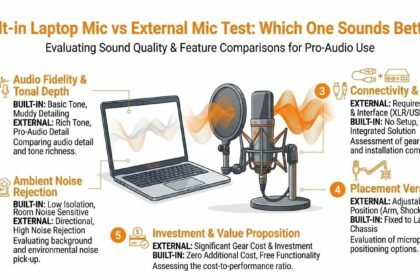
Welcome to Mic Test! Online Test your microphone free to check No sign-up. No registration required instantly in the browser. See real-time audio levels, record your voice, and verify your mic works before calls or recordings.Test your microphone online free in under 2 seconds, built-in mics, USB headsets, Bluetooth earbuds, XLR interfaces, and every audio device supported.
// playback — recorded audio
Full Web Audio API support. Chrome and Edge recommended for best mic testing accuracy.
▼ Click for steps
Safari and Chrome both support the Web Audio API on macOS. System permissions must be granted per browser.
▼ Click for steps

Works directly in mobile browsers. No app download needed to test your phone microphone online free.
▼ Click for steps
Chrome on ChromeOS has full Web Audio API support. USB microphones are detected automatically without driver installation.
▼ Click for steps
Test your microphone, keyboard, mouse, camera, speaker, and more. Every tool is free, instant, and works directly in your browser.
The free online Mic Test checks your microphone is working correctly in your browser using the Web Audio API. It shows a live waveform visualizer and volume meter instantly when you allow microphone access. Test any USB mic, built-in laptop mic, headset mic, or wireless microphone free online with no registration required. Ideal for checking microphone before Zoom, Teams, Discord, or recording sessions.
The free online Speaker Test plays audio tones through your left and right channels to verify stereo separation is working correctly. It tests bass frequencies, mid-range clarity, and high-frequency treble response. Use it to check laptop speakers, USB speakers, desktop monitors, soundbars, and 5.1 or 7.1 surround setups. No download or registration required for any test.
The free online Headphone Test verifies your headphones play audio correctly in both ears with proper stereo balance. It includes tests for channel isolation, frequency response, virtual 7.1 surround sound, and audio phase. Compatible with wired headphones, wireless Bluetooth headsets, gaming headsets, and USB audio devices. No registration required to test online.
The free online Frequency Test generates precise audio tones across the full human hearing spectrum from 20Hz to 20kHz. Test your speakers, headphones, and hearing range. Find your personal hearing cutoff frequency and check if your audio equipment reproduces bass, mid, and high frequencies accurately. Free online with no registration required.
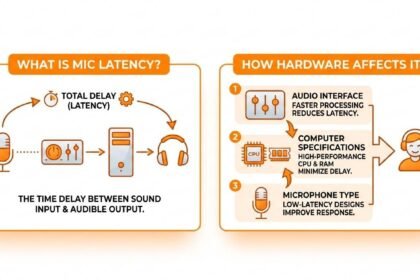
The free online Audio Latency Test measures the delay between your microphone capturing sound and the audio output playing it back. High latency causes audio sync issues in streams and recordings. Under 25ms is excellent for professional use. Test your USB interface, built-in audio, and Bluetooth headset latency free online with no registration.
The free online Keyboard Test highlights every key you press on a visual keyboard layout, making it easy to spot stuck keys, unresponsive keys, and ghosting issues. Test any mechanical keyboard, membrane keyboard, gaming keyboard, or laptop keyboard free online. No drivers or downloads required. Works with all layouts including QWERTY, AZERTY, and DVORAK.
The free online Mouse Test checks every button on your mouse responds correctly, your scroll wheel registers up and down movement, and your mouse tracking is accurate. Test left click, right click, middle click, side buttons, DPI switching, and double-click speed. Compatible with all gaming mice, office mice, wireless mice, and trackpads. No registration required.
The free online Touch Screen Test supports up to 10 simultaneous touch points and detects pinch, rotate, and swipe gestures in real time. Includes a live touch heatmap showing which areas you tap most, dead zone detection, and a finger-drawing canvas. Compatible with all smartphones, tablets, touchscreen laptops, and 2-in-1 devices. Free, no registration needed.
The free online Camera Test activates your webcam and shows a live video preview to confirm it is working before video calls or recordings. It checks camera resolution, frame rate, white balance, and low-light performance. Works with built-in laptop webcams, external USB cameras, and virtual cameras. No app download or registration required online.
The free online Screen Test fills your display with solid colours and patterns to reveal dead pixels, stuck pixels, backlight bleed, and colour uniformity issues. Test with pure red, green, blue, black, white, and grey fills. Essential for checking new monitor quality or diagnosing display issues. Works on all screens free online with no registration needed.
The free online Color Test checks your display can reproduce the full colour spectrum accurately and tests for colour blindness. Identifies red-green, blue-yellow, and complete colour vision deficiencies. Also verifies your monitor colour profile, contrast ratio, and gamma curve. Essential for photographers, designers, and gamers. Free online with no registration required.
The free online Internet Speed Test measures your real-time download speed, upload speed, ping latency, and connection jitter without any app installation. Broadband, WiFi, 4G, and 5G connections are all supported. Use it to diagnose slow internet, verify your ISP speeds, and check before video calls or streaming. No registration required online.
The free online Battery Test reads your device battery level, charging status, and discharge rate using the browser Battery API. Instantly see your current charge percentage, whether your device is charging, and estimated time remaining. Works on laptops, smartphones, and tablets. No download or registration required to check battery health online.
The free online Click Speed Test measures how many times per second you can click your mouse. It tracks your clicks per second (CPS), total clicks, average CPS, and peak CPS across timed 5, 10, 30, and 60 second modes. Popular with gamers testing their clicking technique. Free online with no registration, tracks your session best score automatically.
A step-by-step guide to testing your microphone online free at Mic Test. No download, no registration, works on every device and browser. Join these six steps to confirm your mic is working perfectly before calls, recordings, or live streams.
STEP 01
Go to mictest.online in any modern browser on your device. The page loads instantly — no app install, no account. Everything runs inside the browser using the Web Audio API. Your audio never leaves your device and is never uploaded to any server.

STEP 02
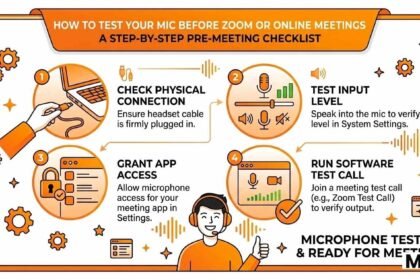
Plug in any external USB microphone, headset, or XLR interface before opening the test page. Built-in laptop and phone microphones need no setup. Bluetooth headsets must be fully paired and set as the default input device in your OS audio settings before starting.
STEP 03
Click Start Mic Test. A browser permission popup will ask if Mic Test can access your microphone. Click Allow. This is required for the browser to read your mic signal. Permission is only active while the page is open and is never stored after you leave.
STEP 04
Once permission is granted, speak, clap, or tap near the microphone. Watch the live waveform and volume meter. If your mic is working, the waveform will show peaks matching your voice and the volume bar will rise during speech and fall back to baseline during silence.

STEP 05
The Mic Test displays your live volume in dB, peak level, waveform shape, and signal quality. A healthy mic shows smooth waveform movement with peaks between −30dB and −10dB during normal speech. A completely flat line at zero means no signal is being received from the microphone.
STEP 06
Click Download Report to save a plain-text summary of your test results. The file includes your device name, detected volume levels, browser info, OS details, and a pass or fail verdict. Share it with IT support or keep it to monitor microphone performance over time.
Run the free Mic Test at mictest.online before every Zoom call, Teams meeting, podcast session, or stream. It takes under 30 seconds and confirms the microphone is still working after any OS update, driver change, or hardware reconnection. A 30-second check prevents audio failures in front of clients or live audiences.
Do not rely on the volume meter alone. A microphone can show level movement but still have a damaged capsule producing distorted audio. Study the waveform shape — smooth symmetrical peaks indicate a healthy signal, while a noisy jagged pattern at low volumes suggests physical capsule damage or a loose connection.
Wear headphones, not external speakers, when running the online Mic Test. Speakers output audio that the microphone then picks up, creating a feedback loop that distorts your waveform readings. Headphones give an accurate, isolated microphone signal reading.
Before running the Mic Test, close Zoom, Teams, Discord, OBS, Skype, and any other application that may hold exclusive access to your microphone. Many apps block the microphone for other software while they are running. Closing them ensures the Mic Test gets a clean, unshared signal directly from the hardware.
For the most accurate test, move to the quietest room available and observe the volume meter during complete silence before speaking. A healthy mic in a quiet room reads −70dB or lower at rest. If you see −40dB or higher during silence, significant ambient noise is being captured that will reduce call and recording quality.
If your microphone passes the Mic Test sometimes but fails other times, or shows random dropouts, the most common cause is outdated or corrupted audio drivers. On Windows, open Device Manager → Sound → right-click your adapter → Update Driver. On macOS, run Software Update. Driver refreshes resolve most intermittent mic detection failures.
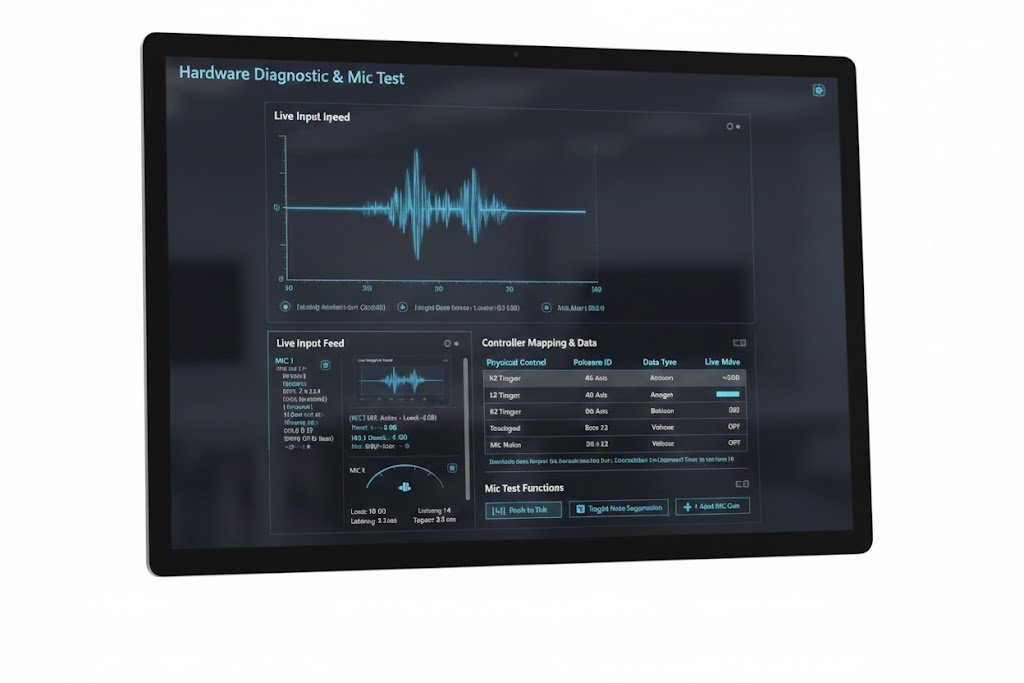
A professional-grade, browser-based microphone testing suite. No downloads, no plugins, no sign-up — instant results, complete privacy, and every feature you need to diagnose, compare, and optimise your audio input.
Every feature runs entirely inside your browser using the Web Audio API. Your audio is never sent to any server — complete privacy, always.
Four steps, under 60 seconds, no account needed.
Click Start Mic Test — your browser detects every connected audio input automatically. Filter by type: built-in, USB, Bluetooth, headset, gaming, XLR, or virtual.
Allow microphone access when prompted. All audio is processed entirely locally — it never leaves your device or touches any server at any point.
Talk into your mic and watch the live waveform, frequency bars, volume level, and peak meter respond in real time. Toggle filters to compare their effect instantly.
Enable recording, capture a clip, then play it back immediately to hear exactly how your mic sounds. Download the file or compare two microphones side by side.
Every data point is read directly from your browser's Web Audio API and MediaDevices interface in real time — no estimates, no approximations.
From a basic laptop mic to a professional XLR studio condenser — if your device shows up in your OS audio inputs, it works here.
Free, instant, and completely private. No downloads, no account, no waiting. Your audio never leaves your browser — ever.
Connect any microphone — built-in, USB, Bluetooth, or XLR via audio interface — and test it instantly in your browser. The live visualiser shows real-time waveform and frequency spectrum, volume meters, peak detection, and full device diagnostics updating at 60 FPS every frame.
Real-time waveform & FFT spectrum · Live volume level meter · Pass / fail signal detection · Device name, sample rate & latency · Recording & playback · Gain boost & noise suppression toggles
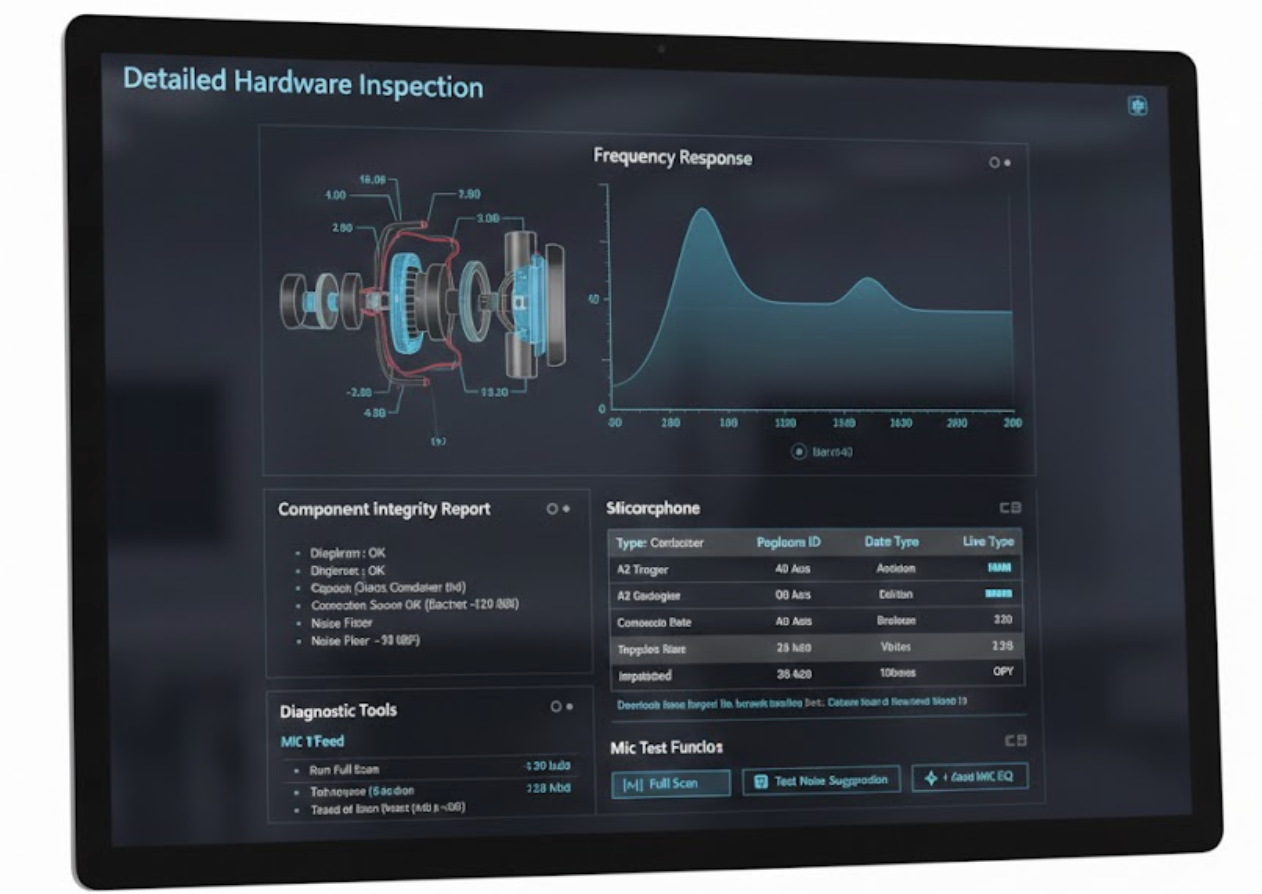
Go beyond a basic signal check. Our detailed inspection tools give you a complete technical picture of your microphone — from echo and latency to noise suppression effectiveness and A/B comparison recording. Fix audio issues before they affect your calls, podcasts, or streams.
8 dedicated tools to fully diagnose every aspect of your microphone — echo, latency, noise floor, frequency response, gain, suppression filters, and side-by-side mic comparison.
Real-time waveform, frequency spectrum, SNR analysis, noise fingerprint and full audio pipeline diagnostics — all inside your browser.
| Feature | 🎤 Mic Test Pro | Windows Sound Settings |
Voice Memo App | Audacity |
|---|---|---|---|---|
| Real-Time Waveform | ✓ 60 FPS | Bar only | ✗ | ✓ |
| FFT Spectrum | ✓ 2048-pt | ✗ | ✗ | ✓ |
| SNR Analysis | ✓ Live dB | ✗ | ✗ | Manual |
| Noise Fingerprint | ✓ Auto | ✗ | ✗ | ✗ |
| Signal Pipeline View | ✓ Live | ✗ | ✗ | ✗ |
| Record & Playback | ✓ WebM | ✗ | ✓ | ✓ |
| Works on Mobile | ✓ All devices | ✗ | App only | ✗ |
| Zero Installation | ✓ Browser | ✓ Built-in | App needed | Download |
| 100% Private | ✓ Local only | ✓ | ✓ | ✓ |
| Free Forever | ✓ | ✓ | ✓ | ✓ |
Everything you need to test, diagnose, and optimise your microphone. Follow our complete step-by-step guide, watch the video walkthrough, and fix any audio issue in minutes — no software required.
Prefer to learn by watching? This short video walkthrough covers the entire microphone testing process from start to finish — including how to read the results, fix common issues, and use every feature of Mic Test Pro.
A microphone test is a quick process that verifies your audio input device is working correctly and capturing sound at the right quality level. It checks that your OS detects the microphone, your browser has access to it, the signal level is strong enough, there is no excessive background noise or distortion, and the audio sounds clean and intelligible on playback.
Online mic tests like Mic Test Pro do all of this inside your browser using the Web Audio API — a built-in browser technology that processes audio entirely on your device. Nothing is ever recorded on a server. Your audio stays completely private.
When do you need to test your microphone? Before a job interview, podcast recording, live stream, online class, customer call, YouTube video, gaming session, or any situation where poor audio would be embarrassing or costly. Testing takes under 60 seconds.
Follow these steps in order for a complete and accurate microphone test. Most users complete the full process in under two minutes.
We analysed 7 competitor microphone testing tools, mapped every feature, and scored each objectively. Here is the full, transparent breakdown of what Mic Test Pro does differently — and why it matters.
Five key categories rated 0–10. Competitor scores are averaged across 7 tested tools.
Every feature scored transparently. Green = advantage, red = limitation, grey = partial.
Eight reasons that set Mic Test Pro apart from anything else on the web.
Patterns we've documented across 7+ competitor tools, reported honestly.
Several top tools force users through full-screen interstitial ads or 10+ second countdowns before the mic test even starts.
Many competitors don't clarify if audio is processed locally. Microphone data handling is often omitted entirely from their privacy policies.
Most tools give only "Microphone working" or "No signal". Users need frequency, waveform, and volume data — not a yes/no result.
Testing from iOS on competitor tools often results in broken visualisers, missing UI elements, or total test failure on Safari.
Ad scripts, tracking pixels, heavyweight bundles — many competitors take 4–8 seconds to become interactive, defeating the point of a quick check.
Competing tools apply noise suppression and echo cancellation by default with no toggle, masking your mic's real quality.
Users with multiple inputs have no way to switch devices mid-test — a full page reload is required to try a second microphone.
When a test fails, most tools show one generic tip. No walkthrough, no fix guide — users must search elsewhere at the worst moment.
No downloads. No account. No ads. Open Mic Test Pro, click Start, and have professional-grade diagnostics in under 30 seconds.
Testing your microphone online is completely free and takes under 60 seconds on Mic Test Pro. You don't need to install any software, create an account, or pay anything. Here's how:
The most common reasons your microphone doesn't work in the browser are permission issues, another app holding exclusive access, or an OS-level setting blocking it. Work through these in order:
If none of these work, try a different browser. Chrome has the broadest microphone API support of any browser in 2025.
On Mic Test Pro's volume meter, aim to keep your speaking level consistently between 40% and 75% during normal conversation. This is the professional "sweet spot" for both voice calls and recording.
Below 20%: Too quiet — listeners will have to strain to hear you, and software may amplify your signal along with any background noise, making hiss more audible. Increase your system microphone input volume or move closer to the mic.
20–40%: Acceptable but a little low. Fine for casual calls; ideally increase your gain slightly for recording work.
40–75%: Ideal range. Plenty of signal headroom, low noise floor, and no risk of clipping. This is exactly where professional broadcasters target their levels.
75–90%: Borderline loud — any sudden louder sounds (laughing, emphasis) will clip. Reduce system input volume by 10–15%.
Above 90% / hitting 100%: Clipping is occurring. This causes harsh, distorted audio that cannot be fixed in post-production. Reduce gain immediately.
Absolutely not. Mic Test Pro processes all audio entirely inside your browser using the Web Audio API — a standard browser technology that runs locally on your device. No audio data is ever transmitted to our servers or any third-party service.
You can verify this yourself in seconds: open your browser's developer tools (press F12), go to the Network tab, then start the mic test and speak. You will see zero network requests containing audio data — because none are made.
The only things that ever reach our server are the initial page load (HTML, CSS, JS files) and standard analytics like page views — never audio. The microphone stream exists only within your browser's JavaScript sandbox and is destroyed the moment you click Stop or close the tab.
The two most common professional microphone types work very differently, and each suits different situations:
Condenser microphones use a thin electrically-charged diaphragm that moves in response to sound. They are highly sensitive, capture a wide frequency range with great detail, and are ideal for quiet recording environments like home studios, podcasting, voiceover, and ASMR. They require external power, either through a battery or phantom power (+48V) from an audio interface. Examples: Blue Yeti, Audio-Technica AT2020, Rode NT1. Downside: their high sensitivity means they also pick up more background noise and room reverb.
Dynamic microphones work like a loudspeaker in reverse — a coil of wire moves through a magnetic field. They are more robust, handle very loud sound sources well, and importantly reject off-axis sounds like room noise, keyboard clicks, and air conditioning. They require no phantom power. Examples: Shure SM7B, Rode PodMic, Shure SM58. Downside: less sensitive and less detailed in the extreme high and low frequencies compared to condensers.
Low microphone volume is one of the most common audio complaints. Here are all the fixes, starting from the simplest:
Yes — Mic Test Pro works fully on all modern mobile devices, though there are a couple of important notes per platform:
iPhone & iPad (iOS/iPadOS): Use Safari — it's the only browser on iOS that currently supports the full Web Audio API with microphone access. iOS 14.5 or newer is required. Chrome and Firefox on iOS use Apple's WebKit engine and currently have limited microphone support. When you first click Start, iOS will show a system popup — tap Allow.
Android: Works in Chrome, Firefox, Edge, and Samsung Internet. Android has no browser restriction like iOS. Make sure "Microphone" permission is granted for the browser in your Android App Settings if prompted. External USB-C microphones connected via an OTG adapter are also detected and selectable from the device dropdown.
The complete feature set — real-time waveform, frequency spectrum, recording, volume meter, device selection, and all test options — works on mobile exactly as it does on desktop. The layout adapts fully to any screen size.
A robotic, metallic, or "underwater" voice quality is almost always caused by one of four things, and each has a quick fix:
1. Noise Suppression over-processing: Browser-native AI noise suppression is the #1 cause of robotic voice. It was designed for consumer voice calls and can distort natural voice character, especially on high-quality microphones. Fix: disable Noise Suppression in Test Options and compare immediately.
2. Sample rate mismatch: If your OS audio sample rate doesn't match what the browser expects (e.g. OS set to 44,100 Hz but browser gets 48,000 Hz), audio plays back at the wrong speed, causing pitch and timing artefacts. Fix: Windows → right-click speaker → Sounds → Recording tab → device Properties → Advanced → set to 48000 Hz (or 44100 Hz). Match this in all apps.
3. CPU / processing overload: Too many tabs, apps, or video calls running simultaneously can cause audio buffer underruns. Fix: close background applications and other browser tabs, then restart the test.
4. Poor Bluetooth connection: Bluetooth audio in HFP/HSP microphone mode has limited bandwidth by design. The codec cannot transmit high-quality voice. Fix: use a wired connection for any recording where quality matters.
Phantom power is a method of delivering electrical power (+48 volts DC) from an audio interface or mixer to a microphone through the same XLR cable that carries the audio signal. The name "phantom" comes from the fact that the power is invisible on the audio signal — it doesn't affect the sound.
Which microphones need it? Most condenser microphones require phantom power to operate — without it they produce no signal or very low output. This includes studio condensers like the Rode NT1, AKG C414, Audio-Technica AT2020, and Neumann TLM 103.
Which microphones do NOT need it? Dynamic microphones (Shure SM7B, Rode PodMic, Shure SM58), ribbon microphones (most models — in fact, phantom power can damage some ribbon mics), and all USB microphones (they get power from the USB port).
How to enable it: On most audio interfaces there is a button labelled "+48V" or "Phantom Power" — press it after connecting your condenser mic. If you're using Mic Test Pro and your condenser mic shows very low or zero signal, enabling phantom power on your interface is the first thing to check.
Mic Test Pro includes a built-in browser recording feature that uses the MediaRecorder API — no plugins needed. Here's how to record and download:
To convert your WebM recording to MP3 or WAV, import it into Audacity (free) or use an online converter. The recording quality matches your system's sample rate — typically 44,100 Hz or 48,000 Hz.
This is a fundamental Bluetooth protocol limitation — not a bug with your headset or our tool. Bluetooth headsets operate in two very different audio modes:
A2DP mode (stereo, high quality): Used when you're listening to music, podcasts, or audio only. Your headset receives high-quality stereo audio, but the microphone is completely disabled in this mode. This is why AirPods and other Bluetooth headsets sound excellent for music playback.
HFP / HSP mode (headset profile, low quality): This is the mode that activates the microphone. To allow two-way audio simultaneously, the Bluetooth codec must massively compress the audio in both directions — dropping from high-quality stereo playback to narrowband mono at 8kHz or wideband at 16kHz. The result is the characteristic "tin can" sound of Bluetooth headset microphones in calls.
This trade-off exists in every Bluetooth headset, even premium ones. There is no firmware fix or setting that eliminates it — it's a limitation of the Bluetooth specification.
Reducing echo and noise is a combination of physical room treatment, microphone placement, and software settings. Here's the priority order — starting with the most effective:
Yes — this is one of the most common uses of Mic Test Pro. Testing your microphone for 30–60 seconds before joining any important video call is a best practice that professional remote workers and content creators treat as routine.
Important: Open Mic Test Pro in a browser tab before launching Zoom, Teams, or Meet. Some video call applications request exclusive microphone access — if they're already running, they may block the browser from accessing the microphone. The recommended workflow is:
The frequency spectrum (FFT analyser) in Mic Test Pro shows a real-time breakdown of your audio signal across the audible frequency range from 20 Hz to 20,000 Hz. Each vertical bar represents a frequency band — taller bars mean more energy at that frequency.
What to look for when you speak:
Low end (20–200 Hz): This is the bass/rumble region. Some activity here is normal from chest resonance in voices. Very high bars in this range while you're not speaking indicates low-frequency noise — HVAC rumble, desk vibration, or traffic. A high-pass filter or moving the mic to a shock mount will reduce this.
Midrange (200 Hz–4 kHz): This is where the core of human speech lives. Strong, consistent energy here while speaking is a good sign. Your name, vowels, consonants, and voice character all live in this range. A microphone with thin or weak bars here will sound "hollow."
High end (4–20 kHz): This adds presence, crispness, and air to voice. Strong "S" and "T" sounds show up here. If this region is completely flat or dead, your microphone (or its connection) is rolling off the high frequencies — often a sign of a damaged capsule or a low-quality audio interface.
A completely flat spectrum while speaking (no movement at all) means no signal is being received — check your microphone connection and permissions.
The right microphone depends entirely on your use case and environment. Here's a decision guide based on what real users need:
For video calls only (budget-friendly): Any quality USB headset in the £40–£90 range like the Jabra Evolve2 30 or Logitech H650e will sound significantly better than a built-in laptop mic and adds the convenience of being wearable.
For video calls + light podcast / content: A USB desktop condenser like the Audio-Technica ATR2100x (~£80) or Elgato Wave:3 (~£130) sits on a desk, needs no audio interface, and gives noticeably richer voice quality.
For podcasting / YouTube / streaming in a noisy home office: A dynamic USB mic like the Rode PodMic USB (~£120) or Samson Q9U (~£100) offers excellent noise rejection without needing any additional hardware.
For professional broadcast quality: The Shure SM7B (~£360) with an audio interface like the Focusrite Scarlett Solo (~£130) is the industry standard for podcasters, streamers, and voiceover artists. It's what most major podcasters and streamers use.
Sign in to your account