A working microphone is essential for many everyday activities such as online meetings, gaming, voice recording, video calls, and online classes. If people cannot hear you clearly or your microphone seems silent, testing it online is one of the fastest ways to find the problem.
Online microphone tests allow you to quickly check whether your mic is working properly without installing any software. These tools run directly in your web browser and show if your microphone is picking up sound.
Why You Should Test Your Microphone Online
Before joining an important meeting or recording audio, it is a good idea to test your microphone.
Online microphone testing helps you:
- Confirm your microphone is working
- Check sound clarity and volume
- Identify connection issues
- Detect permission problems in your browser
- Avoid problems during calls or recordings
Testing takes only a few seconds but can prevent communication problems later.
Things to Check Before Testing Your Microphone
Before using an online microphone test tool, make sure your basic setup is correct. This avoids false results and helps you identify the real issue faster.
Check Your Microphone Connection
If you are using an external microphone or headset:
- Make sure it is properly plugged into the computer
- If it uses USB, try another USB port
- If it uses a headphone jack, confirm it is fully inserted
Loose connections are one of the most common causes of microphone problems.
Make Sure the Microphone Is Not Muted
Some microphones and headsets include a mute button or switch.
Check that:
- The mute button is not enabled
- The microphone arm on a headset is lowered if required
- The inline mute switch on the cable is turned off
Even experienced users sometimes forget this small detail.
Close Apps That Use the Microphone
Some applications lock the microphone while they are running.
Close apps such as:
- Video meeting software
- Voice recording tools
- Streaming software
- Voice chat apps
Then perform the online microphone test again.
Step by Step Guide to Test Your Microphone Online
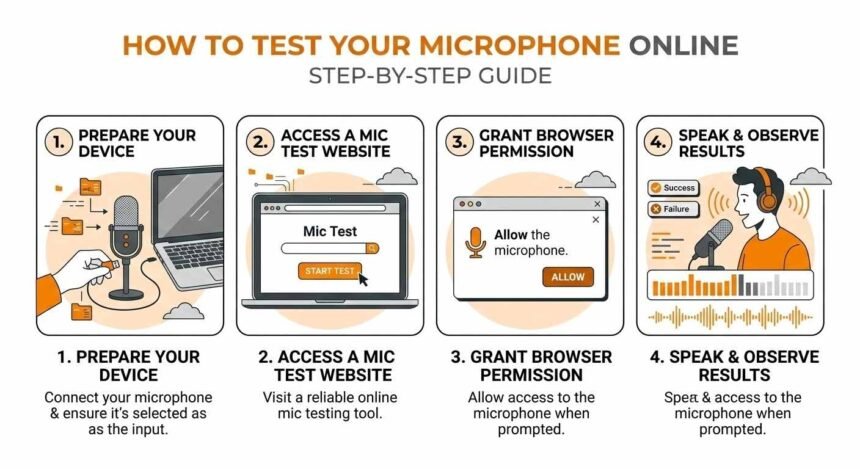
Testing your microphone online is very simple. Follow the steps below.
Step 1 Open an Online Microphone Test Website
Open your web browser and search for an online microphone tester. These websites allow you to check microphone input instantly.
When the page loads, the website will ask for permission to use your microphone.
Step 2 Allow Browser Microphone Access
A small popup will appear asking for microphone access.
Click Allow.
If you select Block, the test will not work because the website cannot access your microphone.
If you accidentally block it, you can change it later in browser settings.
Step 3 Select the Correct Microphone
Some computers have multiple microphones such as:
- Built in laptop microphone
- Headset microphone
- USB microphone
- Webcam microphone
Make sure the correct device is selected on the testing page.
Choosing the wrong microphone may show no sound even if your main mic works.
Step 4 Speak Into the Microphone
Now speak normally into your microphone.
Most microphone test tools display:
- A moving sound level bar
- A volume meter
- A waveform animation
If the meter moves when you speak, your microphone is working correctly.
Step 5 Review the Sound Level
Observe how the sound level reacts when you talk.
Good results usually show:
- Moderate movement while speaking normally
- Higher movement when speaking loudly
- Lower movement when speaking softly
If the bar barely moves, your microphone volume may be too low.
How to Test Microphone Quality
Testing the microphone signal is helpful, but you should also check the sound quality.
Record a Short Voice Sample
Some online tools allow you to record your voice.
Record a short sentence and listen to the playback.
Pay attention to:
- Clarity
- Background noise
- Echo
- Distortion
This helps determine if your microphone quality is good enough for meetings or recordings.
Check for Background Noise
If you hear strong background noise, try the following:
- Move closer to the microphone
- Reduce room noise
- Turn off fans or loud devices
- Use a quieter room
Environmental noise can affect microphone quality more than the device itself.
What to Do If Your Microphone Is Not Detected
If the online test shows no activity, the microphone may not be detected by your system.
Check Computer Sound Settings
Open your computer sound settings and confirm the correct microphone is selected as the input device.
On Windows:
- Right click the speaker icon
- Open Sound settings
- Check the Input section
Select the microphone you want to use.
Check Microphone Permissions
Modern operating systems include privacy controls that limit microphone access.
Make sure microphone access is enabled for:
- Your browser
- The operating system
- Specific applications
Without permission, the microphone cannot work even if it is connected properly.
Restart Your Browser
Sometimes the browser may not detect new audio devices.
Close the browser completely and reopen it. Then run the online microphone test again.
How to Improve Microphone Sound Quality
If your microphone works but the sound is not clear, a few adjustments can improve the quality.
Adjust Microphone Volume
Open your system sound settings and increase the microphone input level.
A higher input level helps your voice sound louder and clearer.
Position the Microphone Correctly
Microphone placement is important.
Good positioning tips:
- Keep the microphone close to your mouth
- Avoid placing it too far away
- Do not speak directly into it if it causes distortion
A distance of about 15 to 30 centimeters usually works well.
Use a Quiet Environment
Background noise can reduce microphone clarity.
Try to record or talk in:
- A quiet room
- A space with minimal echo
- An area away from fans or air conditioners
Even a good microphone performs poorly in a noisy environment.
When to Replace Your Microphone
If you test your microphone online and it consistently fails, the device may be damaged.
Signs of hardware failure include:
- No sound detected at all
- Static or distorted audio
- Frequent disconnections
- Microphone not detected by the computer
In this case, replacing the microphone or headset may be the best solution.
Final Thoughts
Testing your microphone online is one of the easiest ways to confirm whether your audio setup is working properly. The process takes only a few minutes and requires no software installation.
By checking connections, allowing browser access, selecting the correct microphone, and reviewing sound levels, you can quickly identify most microphone problems.
Regular microphone testing is especially helpful before important meetings, recordings, or online classes. It ensures your voice is clear and avoids technical issues during communication.