By using this site, you agree to the Privacy Policy and Terms of Use.
Accept
100% Free & Private — Your audio never leaves your browser  ·  Test Your Mic Now →
Mic Test logo MicTestPro
Microphone Tests
Mic Test Popular
Test mic live — waveform, volume meter & pass/fail result instantly
Online Microphone Test
Full browser-based mic test — no downloads, no sign-up required
Webcam & Mic Test New
Test your camera and microphone together in one session
Mic Test for Zoom
Optimise audio for Zoom calls — test before every meeting
Mic Test for Google Meet
Check audio settings before Google Meet video calls
Mic Test for MS Teams
Verify your microphone works perfectly in Microsoft Teams
Keyboard Test
Test every key on your keyboard online — free, instant, no registration
Mouse Test
Check all mouse buttons, scroll wheel and DPI accuracy online
Touch Screen Test New
Multi-touch, gestures, swipe, pinch & latency — free online test
Spacebar Clicker
Click speed test — measure spacebar CPS and reactions free
Mobile Test
Full device check — sensors, screen, camera & audio on mobile
All tests — 100% free, no registration, works in browser
Start Quick Test
Specialised Audio Tests
Headphone Test
Test audio output, stereo imaging and frequency response
Speaker Test
Check speaker balance, stereo channels and volume output
Sound Test
Complete audio system test — input and output together
Echo Test New
Detect microphone echo and feedback loop issues
Background Noise Test
Measure ambient noise level and suppression effectiveness
Audio Latency Test
Measure your microphone input delay in milliseconds
Bluetooth Mic Test
Test wireless headset and Bluetooth microphone quality
USB Mic Test
Optimised test for USB condenser and dynamic microphones
Gaming Headset Test
Test gaming headsets — Discord, Steam, Xbox, PlayStation
Vocal Range Test New
Discover your vocal range — soprano, tenor, bass & more, free online
MIDI Test New
Test MIDI keyboard, controller and device input online free
Testing all audio devices — free, instant, browser-based
View All Tests
Gamepad & Controller Tests
Gamepad Tester Popular
Test all buttons, axes and triggers in real time — PS5, Xbox, Switch & more
Button Test New
Check every individual button — detect stuck or unresponsive inputs instantly
Deadzone Test
Visualise analog stick deadzone size and calibrate for competitive gaming
Stick Drift Test
Detect analog stick drift on PS5, Xbox, Switch and third-party controllers
Spacebar Clicker Hot
Measure CPS, reaction time and spacebar speed — free online
All game tests — free & online, no registration, works in any browser
Test My Gamepad
Free Online Tools
Audio Recorder
Record, play back and download audio clips — no software needed
Mic Comparison Tool New
Record & compare two microphones side by side
Frequency Analyser
Real-time FFT spectrum — 20Hz to 20kHz live visualisation
Volume Level Meter
Real-time dB volume meter with peak detection
Noise Suppression Test
Toggle NS/AEC/AGC and hear the difference live
Audio Quality Checker
Comprehensive audio quality diagnostic and scoring
Internet Speed Test New
Check download, upload and ping speed — free online, no registration
Web Page Test New
Analyse page performance, load time and resource breakdown
Mirror Test New
Use your camera as a mirror — flip, zoom & brightness free online
Vibration Test New
Test device vibration motor — pattern, intensity & duration free
All tools run locally in your browser — zero uploads, total privacy
All Tools
All Guides
Complete mic testing guide library
How to Test a Mic
Step-by-step walkthrough
Fix Mic Not Working
Windows, Mac, iOS, Android
Best Mics for WFH
2025 buyer's guide
Test Before a Zoom Call
60-second pre-call checklist
Improve Sound Quality
Pro tips for better audio
By Device Type
Built-in Laptop Mic Test
MacBook, Windows laptop, Chromebook internal microphones
USB Microphone Test
Blue Yeti, HyperX, Elgato Wave, AT2100x and more
Bluetooth Mic Test
AirPods, Sony WH, Jabra, Bose wireless headsets
XLR / Pro Mic Test
Test via Focusrite Scarlett, SSL, Universal Audio interfaces
Gaming Headset Mic Test
SteelSeries, Razer, Corsair, Logitech gaming headsets
iPhone / Android Mic Test
Test mobile built-in mics directly in Safari or Chrome
Blog
Test My Mic
Quick Links
Mic Test Headphone Test Speaker Test Echo Test 🎮 Gamepad Test Button Test Deadzone Test Stick Drift Test Guides Bluetooth Mic Frequency Analyser Audio Recorder Contact
Mic Test Pro
Microphone Tests
Mic Test Popular
Live waveform, level meter, pass/fail result
›
Online Microphone Test
No downloads, no sign-up required
›
Webcam & Mic Test
Camera and microphone combined test
›
Platform Tests
Mic Test for Zoom
Optimise for Zoom calls
›
Mic Test for Google Meet
Before Google video calls
›
Mic Test for MS Teams
Microsoft Teams audio check
›
Device & Screen Tests
Touch Screen Test New
Multi-touch, gestures, swipe & latency
›
Mobile Test
Sensors, screen, camera & audio on phone
›
Keyboard Test
Test every key online — free, instant
›
Mouse Test
Check all buttons and scroll wheel
›
Other Audio Tests
Headphone Test
Stereo, frequency and output test
›
Speaker Test
Check speaker balance and output
›
Echo Test
Detect echo and feedback issues
›
Bluetooth Mic Test
AirPods, wireless headsets
›
Gaming Headset Test
Discord, Xbox, PlayStation
›
Vocal Range Test New
Find your soprano, tenor, bass range free
›
MIDI Test New
Test MIDI keyboard and controller input
›
Game Tools
Gamepad Tester Popular
Test all buttons, axes and triggers in real time
›
Button Test New
Detect stuck or unresponsive inputs
›
Deadzone Test
Visualise stick deadzone and calibrate
›
Stick Drift Test
Detect drift on PS5, Xbox, Switch controllers
›
Spacebar Clicker Hot
CPS, reaction time and spacebar speed
›
Online Tools
Internet Speed Test New
Download, upload and ping speed free
›
Web Page Test New
Page performance and load time analysis
›
Mirror Test New
Use camera as mirror — flip, zoom & brightness
›
Vibration Test New
Test device vibration motor free online
›
Volume Meter
Real-time dB level meter with peak hold
›
Tools & Guides
Audio Recorder
Record and download audio clips
›
All Guides
Step-by-step mic testing guides
›
Blog
Audio news, reviews, tips
›
Company
About
Who we are and our mission
›
Contact Us
info@mictestpro.com
›
Start Free Mic Test Now
About Contact Guides
info@mictestpro.com mictestpro.com
Mic TestMic Test
Aa
  • Contact Us
Search
  • Mic Test
  • Blog
  • Contact Us
  • Live Support
  • Troubleshooting
Have an existing account? Sign In
Follow US
Troubleshooting

How to Fix a Microphone Not Working on Windows 10 and Windows 11

Samantha Rembolt Audio Systems Specialist | Mic Test Team
Last updated: 2026/03/17 at 12:59 AM
Samantha Rembolt Audio Systems Specialist | Mic Test Team 8 Min Read
Share
How to Fix a Microphone Not Working on Windows 10 and Windows 11

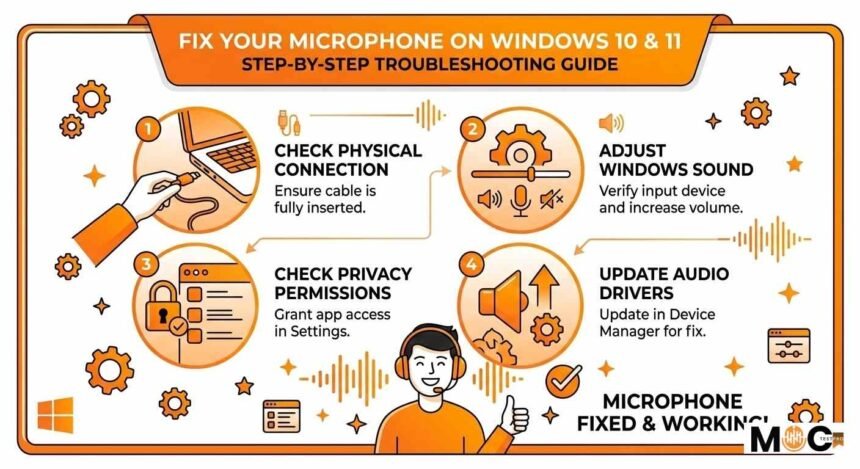
A microphone that suddenly stops working on your computer can be frustrating. Whether you need it for online meetings, gaming, recording, or voice chats, a non-working mic can interrupt your work or communication.

Contents
Check Microphone Permissions in WindowsOpen Microphone Privacy SettingsEnable Microphone AccessAllow Specific Apps to Use the MicrophoneCheck Sound Settings and Default MicrophoneOpen Sound SettingsSelect the Correct Input DeviceTest Your MicrophoneAdjust Microphone VolumeUpdate or Reinstall Microphone DriversOpen Device ManagerUpdate the Microphone DriverReinstall the Microphone DriverCheck Browser Microphone AccessEnable Microphone Access in Google ChromeAllow Microphone on Specific WebsitesCheck Microphone Settings in Other BrowsersCheck for Hardware ProblemsInspect the Microphone CableTest the Microphone on Another DeviceCheck Headset Mute ButtonsTry a Different MicrophoneRestart Audio Services in WindowsRun the Windows TroubleshooterFinal Thoughts

The good news is that most microphone problems on Windows 10 and Windows 11 are easy to fix. The issue usually comes from incorrect settings, disabled permissions, outdated drivers, or simple hardware problems.

This guide explains step by step how to fix a microphone that is not working on Windows. Each solution is explained clearly, so even beginners can follow it.

Check Microphone Permissions in Windows

One of the most common reasons a microphone does not work is that Windows is blocking apps from using it.

Both Windows 10 and Windows 11 include privacy controls that allow you to decide which apps can access your microphone. If this setting is turned off, your mic will not work in apps like video calls, browsers, or recording software.

Open Microphone Privacy Settings

Follow these steps:

  1. Click the Start menu.
  2. Open Settings.
  3. Select Privacy.
  4. Click Microphone.

In Windows 11, you may see it under Privacy and Security, then Microphone.

Enable Microphone Access

Make sure the following settings are turned on:

  • Microphone access for this device
  • Allow apps to access your microphone

If these options are disabled, apps will not be able to detect or use your microphone.

Allow Specific Apps to Use the Microphone

Below the main permission toggle, Windows shows a list of apps that can use the microphone.

Make sure the app you want to use is enabled. For example:

  • Zoom
  • Discord
  • Voice Recorder
  • Google Chrome
  • Microsoft Teams

If the app is disabled, toggle it on.

Check Sound Settings and Default Microphone

Another common reason a microphone does not work is incorrect sound configuration. Windows may be using the wrong microphone as the default device.

Open Sound Settings

  1. Right-click the speaker icon in the taskbar.
  2. Click Sound settings.

You will see sections for input and output devices.

Select the Correct Input Device

Under the Input section:

  • Choose the microphone you want to use.
  • Speak into the microphone and watch the input level meter.

If the bar moves when you speak, your microphone is working.

If nothing moves, Windows may not be detecting your microphone correctly.

Test Your Microphone

Windows includes a microphone test feature.

Steps:

  1. Open Sound settings.
  2. Scroll to Input.
  3. Click your microphone device.
  4. Click Start Test.

Speak normally and check the percentage result. A higher percentage means the mic is working properly.

Adjust Microphone Volume

Sometimes the microphone works, but the volume is too low.

To increase microphone sensitivity:

  1. Open Sound settings.
  2. Select your microphone.
  3. Adjust the Input volume slider.

Set it to 80-100 for better audio detection.

Update or Reinstall Microphone Drivers

Drivers enable Windows to communicate with hardware devices, such as microphones. If the driver is outdated, corrupted, or missing, the microphone may stop working.

Updating the driver often solves the issue.

Open Device Manager

Follow these steps:

  1. Right-click the Start button.
  2. Click Device Manager.
  3. Expand Audio inputs and outputs.

You will see your microphone listed here.

Update the Microphone Driver

  1. Right-click your microphone device.
  2. Select Update driver.
  3. Choose Search automatically for drivers.

Windows will search online and install the latest compatible driver.

Reinstall the Microphone Driver

If updating does not work, try reinstalling the driver.

Steps:

  1. Open Device Manager.
  2. Right-click the microphone device.
  3. Select Uninstall device.
  4. Restart your computer.

Windows will automatically reinstall the driver during a restart.

Check Browser Microphone Access

If your microphone works in Windows but not in a browser, the issue is likely related to browser permissions.

Many websites require permission to use your microphone.

Enable Microphone Access in Google Chrome

Steps:

  1. Open Chrome.
  2. Click the three-dot menu in the top right.
  3. Select Settings.
  4. Click Privacy and Security.
  5. Select Site Settings.
  6. Click Microphone.

Make sure:

  • The correct microphone device is selected.
  • Sites can request microphone access.

Allow Microphone on Specific Websites

When visiting websites such as video conferencing platforms, Chrome may display a microphone permission pop-up.

Always click Allow when asked.

If you accidentally blocked it, you can change it by clicking the lock icon near the website address and adjusting microphone permissions.

Check Microphone Settings in Other Browsers

For browsers like Edge or Firefox:

  • Open Settings
  • Look for Privacy or Permissions
  • Enable Microphone access

Without browser permission, the website cannot record audio, even if the mic works in Windows.

Check for Hardware Problems

If none of the software fixes work, the issue may be hardware-related.

Inspect the Microphone Cable

If you are using a wired microphone:

  • Make sure the cable is fully plugged in.
  • Try another USB port.
  • Check if the cable is damaged.

Loose connections are a very common cause of microphone failure.

Test the Microphone on Another Device

To confirm whether the microphone is working:

  1. Connect it to another computer or laptop.
  2. Test it using a voice recording app.

If it does not work on another device either, the microphone itself may be faulty.

Check Headset Mute Buttons

Many gaming headsets include a physical mute switch.

Make sure:

  • The microphone is not muted
  • The microphone boom is positioned correctly

Some headsets automatically mute when the microphone arm is folded up.

Try a Different Microphone

Connect another microphone to your computer.

If the new mic works, the problem is likely with the original microphone.

Restart Audio Services in Windows

Sometimes Windows audio services stop working properly. Restarting them can fix microphone detection issues.

Steps:

  1. Press Windows key + R.
  2. Type services.msc and press Enter.
  3. Find Windows Audio.
  4. Right-click it and select Restart.

This refreshes the audio system and can restore microphone functionality.

Run the Windows Troubleshooter

Windows includes a built-in tool that automatically detects audio problems.

Steps:

  1. Open Settings.
  2. Go to System.
  3. Select Troubleshoot.
  4. Click Other troubleshooters.
  5. Run the Recording Audio troubleshooter.

The system will scan for problems and suggest fixes.

Final Thoughts

Microphone problems on Windows 10 and Windows 11 are usually caused by simple settings issues rather than hardware failure.

Most users can fix the issue by:

  • Enabling microphone permissions
  • Selecting the correct input device
  • Updating audio drivers
  • Allowing browser microphone access
  • Checking hardware connections

By following the steps in this guide, you should be able to identify the problem and restore your microphone functionality quickly.

If the microphone still does not work after trying all solutions, the device may be physically damaged and replacing it may be the best option.
Share This Article
Facebook Twitter Email Copy Link Print
By Samantha Rembolt Audio Systems Specialist | Mic Test Team
Follow:
Samantha Rembolt works with the Mic Test team to improve microphone diagnostics, sound performance insights, and testing accuracy for modern audio devices.
Previous Article How to Test Your Microphone Online Step by Step Guide How to Test Your Microphone Online Step by Step Guide
Next Article How to Test Your Mic Online in 30 Seconds How to Test Your Mic Online in 30 Seconds
Leave a comment Leave a comment

Leave a Reply Cancel reply

Your email address will not be published. Required fields are marked *

Most Popular

A Memoir of Soccer, Grit, and Leveling the Playing Field
10 Super Easy Steps to Your Dream Body 4X
Mind Gym : An Athlete's Guide to Inner Excellence
Mastering The Terrain Racing, Courses and Training
How to Test Your Mic Online in 30 Seconds

How to Test Your Mic Online in 30 Seconds

By Mic Testing Experts
Free Online Test Tools
LIVE
🎵 Audio
🎤
Mic Test HOT
🔊
Speaker Test POP
🎧
Headphone Test
🎵
Frequency Test
⏱️
Audio Latency NEW
⌨️ Input Devices
⌨️
Keyboard Test HOT
🖱️
Mouse Test
👆
Touch Screen NEW
🖥️ Visual & Display
📷
Camera Test POP
🖥️
Screen Test
🎨
Color Test
📊 Performance
📶
Internet Speed HOT
🔋
Battery Test
🖱️
Click Speed POP
No Registration · Free
15 Tools

Mic Not Working? 10 Easy Fixes That Work Instantly

3 weeks ago

How to Improve Mic Sound Quality for Calls and Recording

3 weeks ago

You Might Also Like

Why Your Mic Is Too Quiet and How to Fix Low Mic Volume
Troubleshooting

Why Your Mic Is Too Quiet and How to Fix Low Mic Volume

2 weeks ago
How to Reduce Mic Background Noise (Complete Guide)
Troubleshooting

How to Reduce Mic Background Noise: Complete Guide

2 weeks ago
Mic Not Working? 10 Easy Fixes That Work Instantly
Troubleshooting

Mic Not Working? 10 Easy Fixes That Work Instantly

2 weeks ago

Ready to Test Your Microphone?

Free, instant, 100% private — works on every device. No downloads, no sign-up.

Start Free Mic Test
Mic Test Pro All In One Free

The free, browser-based microphone testing suite trusted by millions. Test, diagnose, and optimise your audio in seconds — complete privacy, zero downloads.

Free Forever All Devices No Registration
Follow Us
Contact Us
Email
info@mictestpro.com
Phone
+1 (661) 396-2801
Office Address
2701 Ming Ave, Bakersfield,
CA 93304, United States
Support Hours
Mon – Fri, 9 AM – 6 PM PST
Response within 24 hrs
Live Support
mictestpro.com/live-support
Contact Page
mictestpro.com/contact-us
Newsletter

Get audio tips, mic reviews, and new feature updates delivered to your inbox. No spam — unsubscribe any time.

No spam · Unsubscribe anytime · Free
Google News Source Write a Google Review
Mic Tests
Mic Test Online Mic Test Webcam & Mic Test Mic Test for Zoom Mic Test for Meet Mic Test for Teams Mic Test for Discord Mic Test for Skype Mic Test for OBS iPhone Mic Test Android Mic Test AirPods Mic Test
Audio Tests
Headphone Test Speaker Test Sound Test Echo Test Background Noise Test Audio Latency Test Bluetooth Mic Test USB Mic Test Gaming Headset Test Vocal Range Test MIDI Test Volume Meter Frequency Analyser Noise Suppression
Device Tests
Condenser Mic Test XLR Microphone Test Mic Comparison Tool Keyboard Test Mouse Test Touch Screen Test Mobile Test Dead Pixel Test Vibration Test Internet Speed Test Web Page Test
Lavalier Mic Test Soon
Ribbon Mic Test Soon
Game Tools
Gamepad Tester Controller Test Button Test Deadzone Test Stick Drift Test Spacebar Clicker
FPS Counter Soon
Ping Test Soon
Tools
Audio Recorder Audio Latency Tester Mirror Test Troubleshooting Guide All Guides Guides & Tutorials Troubleshooting Tips Tech & Hardware
Waveform Visualiser Soon
Decibel Meter App Soon
Company
About Us Contact Us Live Support Privacy Policy Terms of Service DMCA Policy Disclaimer Sitemap
Meet the Team
MT
Mic Team Experts
Core Testing Team
YF
Yuki Fujieda
Technology Expert
SR
Samantha Rembolt
Audio Systems Specialist
HD
Haleigh Doetschman
Senior Developer
AS
Alexandra Saucedo
Audio Technology Specialist
IL
Isaiah Lindsey
Game Developer & Tester
Mic Test Pro — Team Management Office
2701 Ming Ave, Bakersfield, CA 93304, United States  ·  info@mictestpro.com  ·  +1 (661) 396-2801
View on Map Contact Us
© MicTestPro.com — All rights reserved.
Your microphone audio is processed locally and never sent to our servers.
Privacy Policy Terms of Service DMCA Policy Disclaimer Contact Sitemap
Made with ♥ for better audio
Welcome Back!

Sign in to your account

Lost your password?